Field Types

After creating a Data Entry Form and landing on the form designer page, this is where you'll be able to add different various field types that will allow mobile app users to capture required data.


Our platform offers a range of Basic and Advanced field types that can be used in a form's design by simply clicking or using the drag 'n drop functionality to place fields as desired.


Basic Fields

Advanced Fields


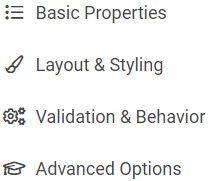
Most field types can be  configured to capture and/or display data based on the following common and unique property categories:


Hh884a5nJj3gbk-Nj7LscWulMLTWnLYjKw.png?1572931886


Basic Fields


Type Brief Description Property Options
4sxEx61ZFyLycGaPmSi3LzOWQsijgQHiFw.png?1572929950 Group fields together in one screen, with optional repeat capture.
  • Basic Properties
  • Layout and Styling
  • Validation and Behaviour
m_0Ycvm1IzY6RJ5RnUrP0HwBdDUGvmF1Pw.png?1572929966 Read-only display of text sections, field separators, and/or reference images.
  • Basic Properties
  • Layout and Styling
  • Validation and Behaviour
qzqEmzB_cyzulikbZe2CMdz9UsFamttcRg.png?1572929979 Display and capture single and multi-line text data.
  • Basic Properties
  • Layout and Styling
  • Validation and Behaviour
  • Advanced Options
22IsTC1SbpejisXKoK7qsOrmaCcrG0asGw.png?1572929991 Display and capture number values.
  • Basic Properties
  • Layout and Styling
  • Validation and Behaviour
  • Advanced Options
9OZ2nxDinKqzBn1RBUGtCvFcVgD8jCj6xw.png?1572930007 Display and capture dates, times, or both.
  • Basic Properties
  • Layout and Styling
  • Validation and Behaviour
  • Advanced Options
VUVhtI_mN5MqPr_8nAMHT3sk0bliv9LoBg.png?1572930017 Single or multiple choice selection via a drop-down, checklist, or text search.
  • Basic Properties
  • Layout and Styling
  • Validation and Behaviour
  • Advanced Options
DvrcqJ5a3jvry79CzkeDOKQJvTqNX9bWeg.png?1572930054 Capture and show GPS and map location, plus optional address lookup.
  • Basic Properties
  • Layout and Styling
  • Validation and Behaviour
  • Advanced Options
5StrJ6reCjtOYTPk-FbqkZlsJJuO1KsSpg.png?1572930067 Display and capture photos, video, or audio.
  • Basic Properties
  • Layout and Styling
  • Validation and Behaviour
  • Advanced Options
KT0s65XCH6jx2E6IXxTH43SvezuAcke7sA.png?1572930078 Capture signatures and sketched drawings by the user.
  • Basic Properties
  • Layout and Styling
  • Validation and Behaviour
  • Advanced Options


Advanced Fields


Type Brief Description Property Options
ORsCBpDHt6N4K61wFOEcF-AanMmzQT3i0g.png?1573787203 Generate a unique number sequence using your own custom format.
  • Basic Properties
  • Layout and Styling
  • Advanced Options
jBi9v84jFoARszlQZD4_-H8muTIk4XbElw.png?1572930335 Capture barcodes and QR codes via the device camera.
  • Basic Properties
  • Layout and Styling
  • Validation and Behaviour
  • Advanced Options
8VbWQ6Zh_JeQ6DPcgjGPeOf1of0QlWZOvw.png?1572930350 Store default or calculate values, invisible to the user.
  • Basic Properties
  • Validation and Behaviour
  • Advanced Options
BFMN10YB8TYePyG-chrxEj8ejFzOXDWMgQ.png?1572930367 Add buttons for user interactions - e.g., open a web link, Doc, Screen or Map.,
  • Basic Properties
  • Layout and Styling
  • Validation and Behaviour
  • Advanced Options
-9_UXaRa-C6QvJbbHe3x5sBX_IGXrL_GYw.png?1572930379 Show a set of fields as editable rows, optionally from a Data Source.
  • Basic Properties
  • Layout and Styling
  • Validation and Behaviour
3A7r_jibU4MDYsF9WUWC8-MVgzPszI8aKA.png?1573787347 Display and capture multiple images with a set of accompanying fields.
  • Basic Properties
  • Layout and Styling
  • Validation and Behaviour
  • Advanced Options
P-jnxUyTjcmgXH0hME8pV3izME0Dy0BXsw.png?1572930405 Allow users to attach documents and files from devices or web locations.
  • Basic Properties
  • Layout and Styling
  • Validation and Behaviour
  • Advanced Options
GOWcfr6OfjNnM0tZ_vEZr3CqbXgQtl-0cw.png?1572930419 Selects the matching row from a filtered Data Source, invisible to the user.
  • Basic Properties
  • Validation and Behaviour
  • Advanced Options
CDzo2YD3xWQHS5kHQcDlW77YpgvPuagpEA.png?1572930432 Splits a form into workflow steps, using Tasks to move the entry between users.
  • Basic Properties
  • Layout and Styling
  • Validation and Behaviour
  • Advanced Options
04eq918xQNco7jzzRs4cCFTgPFtalFh8aQ.png?1572930483 Fire a REST operation in real-time to retrieve data from a web service. The response is returned as text.
  • Basic Properties
  • Advanced Options
wSDi1ebtcr8BK7_bcacLGE2xYvUemLgz7A.png?1572930495 Read and write values on a Near Field Communications tag. ANDROID ONLY.
  • Basic Properties
  • Layout and Styling
  • Validation and Behaviour
  • Advanced Options


Common Properties


numerous similar and unique properties can


Below is a simple list of what can be configured but by no means encompasses everything.

 

DSTPHy06NhTTiCXGSwGE7X2LC7cmh2shLw.png?1572937218
Data Name
Title Text*
Hint Text*

Cj0E4QsZMWPbFCaxe0aWRuJ8WCdb8ZoTbw.png?1572937257
Field Layout (Vertical or Horizontal)
Background Colour

xbc2orc9Em7v-mlHmKNY-EP__txHtyHWAA.png?1572937286
Required*
Visibility*
Read Only*
Custom Validation*
Validation Message*

YC3iX2VXTD3k-l7vAApeYGRvLJFdLrBYEA.png?1572937306 Default Value
Bind To Global Value
Exclude From Export/Display
Is Personal Data


*Static or Dynamic Values/Conditions can be set.


Formula Builder


Some of the field's property allows you to define specific calculation or validation that can be executed whenever the value of a certain field are met. You can define this on the Formula Builder executed.


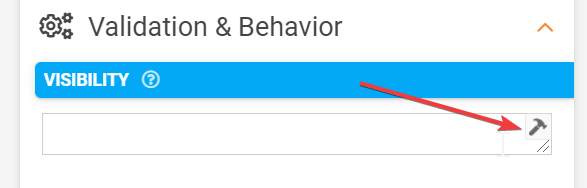
To invoke Formula Builder, click the hammer icon next to the field.


For example, if you click on a form field in the Form designer, then hover over the Visibility property on the right-hand side, you'll see the hammer icon appear.
 

1WHYvbdSsIyV8BmY8iZwIM4F9iw1koHRtg.png?1631234072


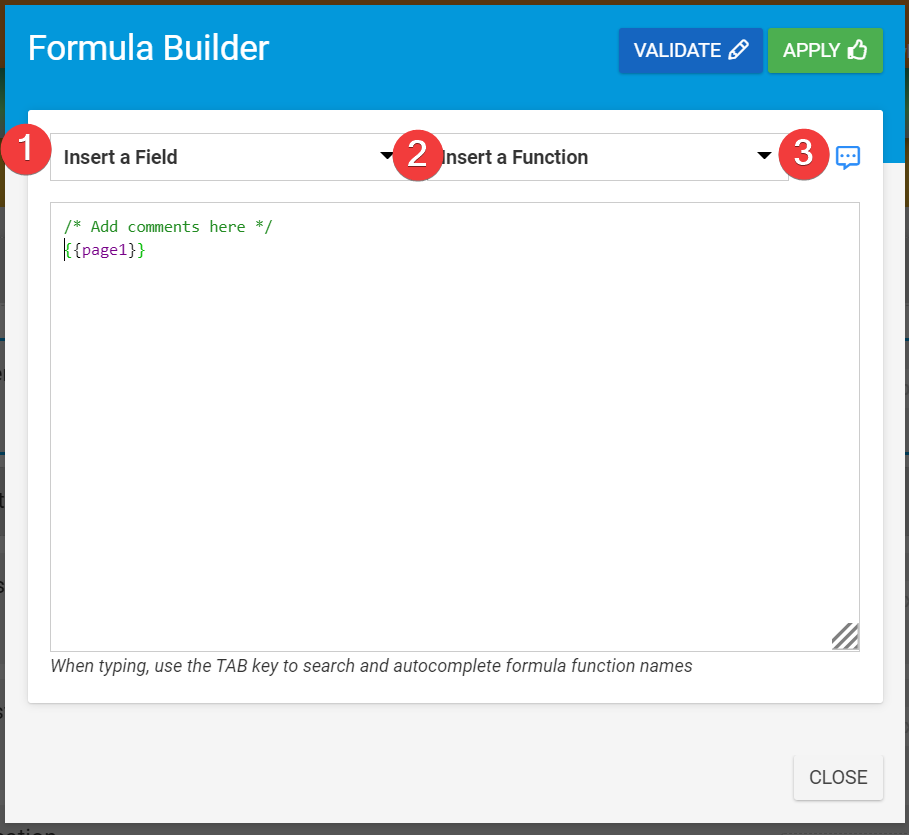
Formula builder window with open as shown below.
LhYzPj-bD1-vEnhlJVA36OhGKU7MvwjPmw.png?1631235263


1. Insert a Field - This allows you to select an existing field from your form.


2. Insert a Function - a predefined list of systems functions for your calculation or validation.


3. Ellipsis -  allows you to insert notes or comments in your formula. This allows you to document the specific functionality of your calculation or validation, especially if it is getting complex. It also helps other users understand the logic of your code.

  • 0 istifadəçi bunu faydalı hesab edir
Bu cavab sizə kömək etdi?

Uyğun məqalələr

Date/Time Field Type

When needing to capture temporal data, use our Date/Time field.As the name implies, this Form...

Gallery Field Type

  This is an advanced field type that allows a user to upload multiple images into a form...

NFC Field Type

The NFC field type allows you to build Form screens that can read and write NFC tags using...

Sketch Field Type

  A Sketch Field Type can be used to capture signatures and can also be used to annotate...

Contactless Signature

  Our Signature field allows for the capturing of signatures on a device in one of...